
99% of WordPress users are already aware of a number of security tips, including:
- Pick a Reliable Hosting Provider 🔝
- Install regular updates 📁
- Automate offsite backups 💾
- Use strong passwords 💪
- Hide wp-admin login link 🔒
- Use a security plugin 🛡️
But in this guide, I’ll go over a few other, lesser-known techniques that can help keep hackers out of your WordPress website.
Not just hide – disable wp-admin ❌
Security by obscurity is nothing more than a house of cards. – Let me explain 😀
There are many ways to hide the wp-admin section of your websites and there are also ways to disable it and enable it only when needed. This can be done via a plugin, e.g. WPS Hide Login or manually via a .htaccess file.
The following code can be added to your .htaccess file and it will redirect all users (except your IP address) to a 404 page.
This method looks to an attacker/bot as if wp-admin does not exist, yet it does not break core WP code or plugins that hard-code the wp-admin path.
<IfModule mod_rewrite.c>
RewriteEngine on
RewriteCond %{REQUEST_URI} ^(.*)?wp-login\.php(.*)$ [OR]
RewriteCond %{REQUEST_URI} ^(.*)?wp-admin$
RewriteCond %{REMOTE_ADDR} !^ 11\.22\.33\.44$
RewriteRule ^(.*)$ - [R=403,L]
</IfModule>
💡 Replace 11.22.33.44 with your IP address.
Another solution is instead of redirects to completely disable access to wp-admin for all IP addresses except your own.
Simply create a new .htaccess inside the wp-admin folder and inside add:
## .htaccess inside the wp-admin folder
order deny,allow
deny from all
allow from 11.22.33.44
💡 Replace 11.22.33.44 with your IP address.
🚚 Move wp-config up on the ladder
wp-config.php contains some sensitive information: your database username/password, etc. and good security practice is to move the file outside your website root directory (your /public_html folder). For more detailed instructions and cons&pros, check this article: Move wp-config.php outside the web root directory
To move your wp-config.php file simply copy everything out of it into a different file.
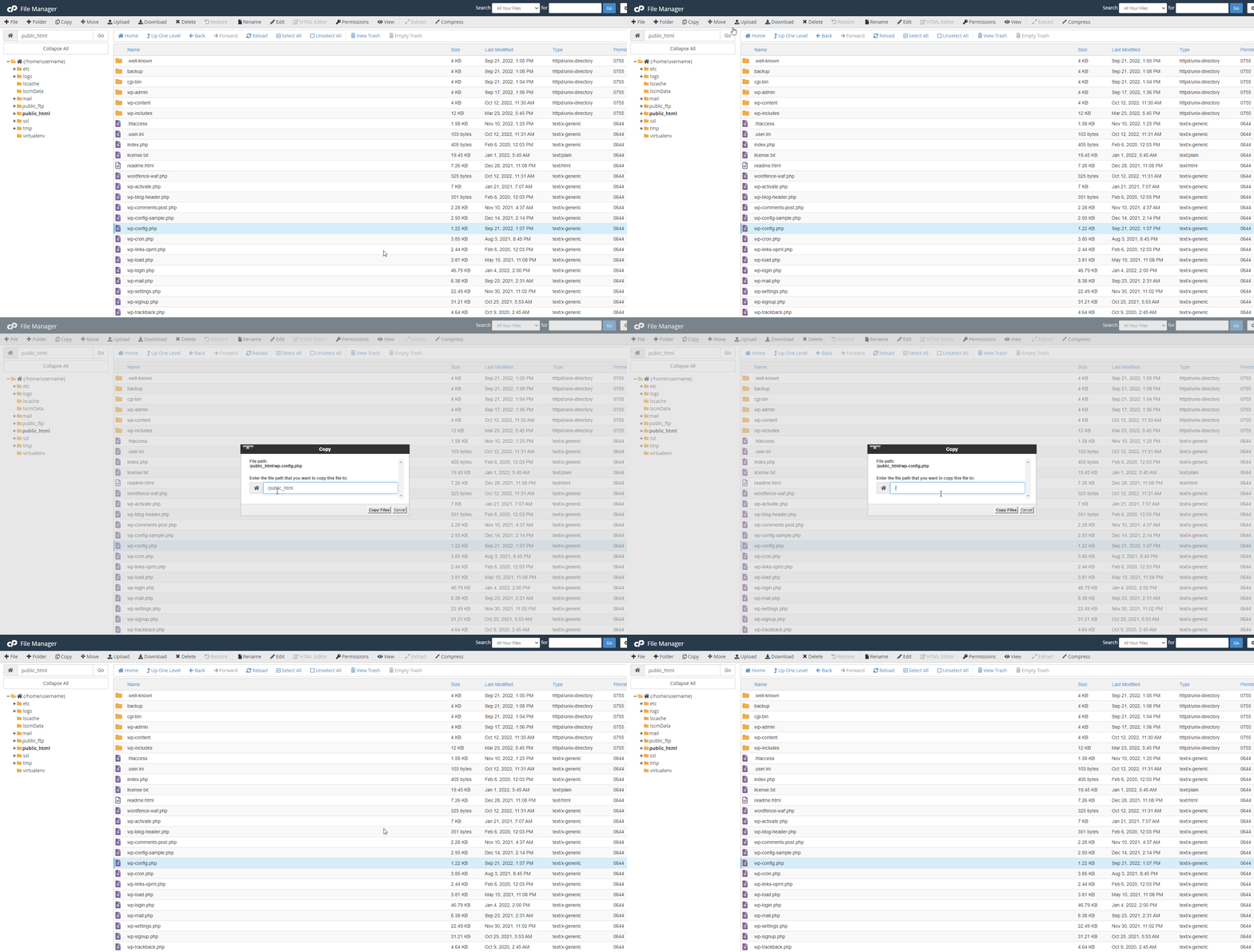
Then in your wp-config.php file you can place the following snippet to simply include your other file.
<?php
include('/home/cpanel-username/wp-config.php');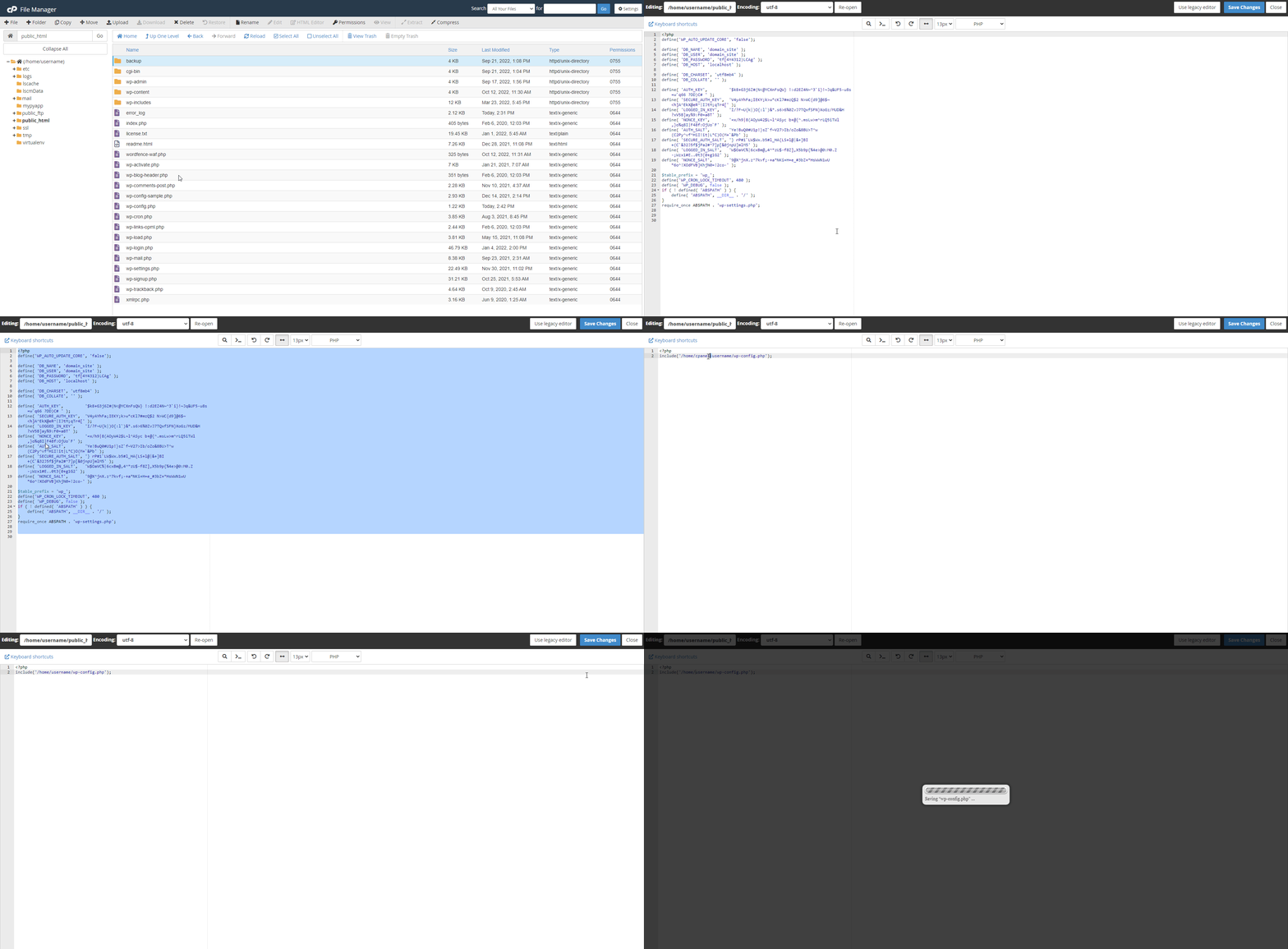
| /home/username/public_html/wp-config.php | just includes the other wp-config.php file |
| /home/username/wp-config.php | the real |
👨💻 Add Content Security Policy (CSP) in WordPress
The HTTP Content-Security-Policy response header allows website administrators to control resources the user agent (browser) is allowed to load for a given page. This helps guard against cross-site scripting attacks (Cross-site_scripting).
For a WordPress site, you can use it by adding CSP rules to the .htaccess file.
<IfModule mod_headers.c>
Header set Content-Security-Policy "default-src 'self'; img-src 'self' http: https: *.gravatar.com; scrip-src 'self' 'unsafe-inline' http: https: *.google-analytics.com;"
</IfModule>
This will allow anything to be loaded from the website + profile photos from Gravatar and Google Analytics (over http & https). Anything else will be blocked by your browser.
Of course, certain plugins could break, because they rely on loading javascript, images, or data from other domains. If you, for example, want to use Jetpack, you will need to allow the appropriate domain(s): scrip-src 'self' 'unsafe-inline' http: https: *.wp.com;.
You can see any violations of these rules in the console of the developer tools of your browser, and add them to the above code!
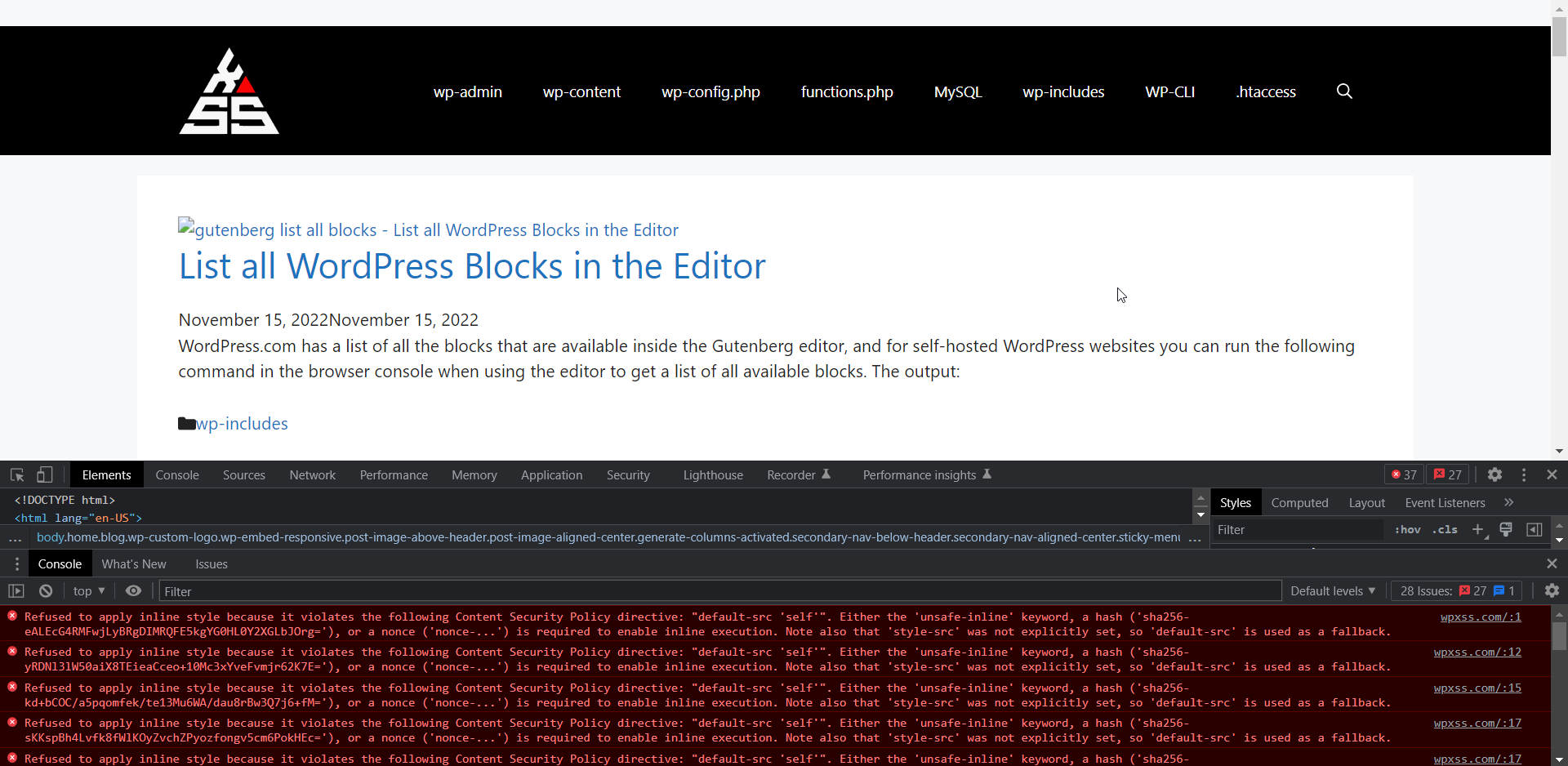
I also recommend only enabling CSP on the front of your website and disabling it for the backend, by adding this CSP in wp-admin/.htaccess:
<IfModule mod_headers.c>
Header unset Content-Security-Policy
</IfModule>
⚠️ To work your web server must have the headers module active. If not sure, ask your hosting provider!
✌️ Use Multi-factor authentication
This is not surprising, but still, less than 1% of WordPress websites have some form of Multi-factor authentification enabled.
Two Factor Authentification (2FA) is covered in length on WordPress.org, along with a list of plugins you may use to set it up: https://wordpress.org/support/article/two-step-authentication/
Apart from 2FA, you can also enable email login links using a plugin such as Magic Links:
or even biometric information (fingerprint) using FIDO:

🔍 Test your website security
Unfortunately, in today’s world, when hackers are becoming more inventive by the day, it is not possible to simply set this thing once and forget about them.
This is why it’s critical to run tests on your WordPress website on a regular basis. It’s always better to find a vulnerability and repair it yourself before someone else exploits it.
Use security vulnerability scanners to discover your points of security weakness. Test your WordPress Application, Web Server, System, and Firewall for any issues.
See 4 Security Checkpoints for your WordPress Website
Now It’s Your Turn!
That’s all for my (Less known) WordPress Security Tips to keep your website safe from hackers.
Now I’d like to hear from you:
- What tip from this guide do you want to try out first?
- Which approach will you use for multi-factor authentication on your website?
- Do you believe it is better to entirely disable wp-admin or just make it more secure?
Either way, let me know by leaving a comment.