

Here is an example of a simple WordPress plugin that uses a shortcode to display a list of files from the WordPress repository on GitHub:
<?php
/*
Plugin Name: List WordPress Core Files
Description: Displays a list of files from the WordPress repository on GitHub.
*/

function wpfl_shortcode_handler( $atts ) {
  // Parse shortcode attributes
  $atts = shortcode_atts( array(
    'path' => '',
  ), $atts, 'files' );

  // Get the list of files from the WordPress repository
  $url = 'https://api.github.com/repos/WordPress/WordPress/contents/' . $atts['path'];
  $response = wp_remote_get( $url );
  $files = json_decode( wp_remote_retrieve_body( $response ) );

  // Build the HTML for the file list
  $html = '<ul>';
  foreach ( $files as $file ) {
    $html .= '<li><a href="' . $file->html_url . '">' . $file->name . '</a></li>';
  }
  $html .= '</ul>';

  // Return the HTML
  return $html;
}
add_shortcode( 'files', 'wpfl_shortcode_handler' );
To use this plugin, you would need to save the code to a PHP file and upload it to the wp-content/plugins directory of your WordPress installation. Then, you can activate the plugin from the WordPress admin dashboard and use the [files] shortcode in your posts or pages to display the list of files.
Use the [files] shortcode in your posts or pages to display the list of files:
[files]

To display a list of files in the wp-includes directory, you could use the following shortcode:
[files path="wp-includes"]

This will display always updated list of WordPress core files anywhere on your website.
To further expand the plugin and style it, we can add nested list and display ALL WordPress core files including subdirectories:
<?php
/*
Plugin Name: List WordPress Core Files
Description: Displays a list of files from the WordPress repository on GitHub.
*/

function wpfl_shortcode_handler( $atts ) {
  // Parse shortcode attributes
  $atts = shortcode_atts( array(
    'path' => '',
  ), $atts, 'files' );

  // Get the list of files from the WordPress repository
  $url = 'https://api.github.com/repos/WordPress/WordPress/contents/' . $atts['path'];
  $response = wp_remote_get( $url, array( 'recursive' => true ) );
  $files = json_decode( wp_remote_retrieve_body( $response ) );

  // Build the HTML for the file list
  $html = '<ul>';
  foreach ( $files as $file ) {
    if ( $file->type == 'dir' ) {
      // If the file is a directory, recursively build the list of files in the directory
      $html .= '<li>' . $file->name . wpfl_build_file_list( $file->path ) . '</li>';
    } else {
      // If the file is not a directory, add it to the list
      $html .= '<li><a href="' . $file->html_url . '">' . $file->name . '</a></li>';
    }
  }
  $html .= '</ul>';

  // Return the HTML
  return $html;
}

function wpfl_build_file_list( $path ) {
  // Get the list of files from the WordPress repository
  $url = 'https://api.github.com/repos/WordPress/WordPress/contents/' . $path;
  $response = wp_remote_get( $url, array( 'recursive' => true ) );
  $files = json_decode( wp_remote_retrieve_body( $response ) );

  // Build the HTML for the file list
  $html = '<ul>';
  foreach ( $files as $file ) {
    if ( $file->type == 'dir' )
{
  // If the file is a directory, recursively build the list of files in the directory
  $html .= '<li>' . $file->name . wpfl_build_file_list( $file->path ) . '</li>';
} else {
  // If the file is not a directory, add it to the list
  $html .= '<li><a href="' . $file->html_url . '">' . $file->name . '</a></li>';
}
}
$html .= '</ul>';

// Return the HTML
return $html;
}

add_shortcode( 'files', 'wpfl_shortcode_handler' );
This gives us a pretty long list of all WordPress files:
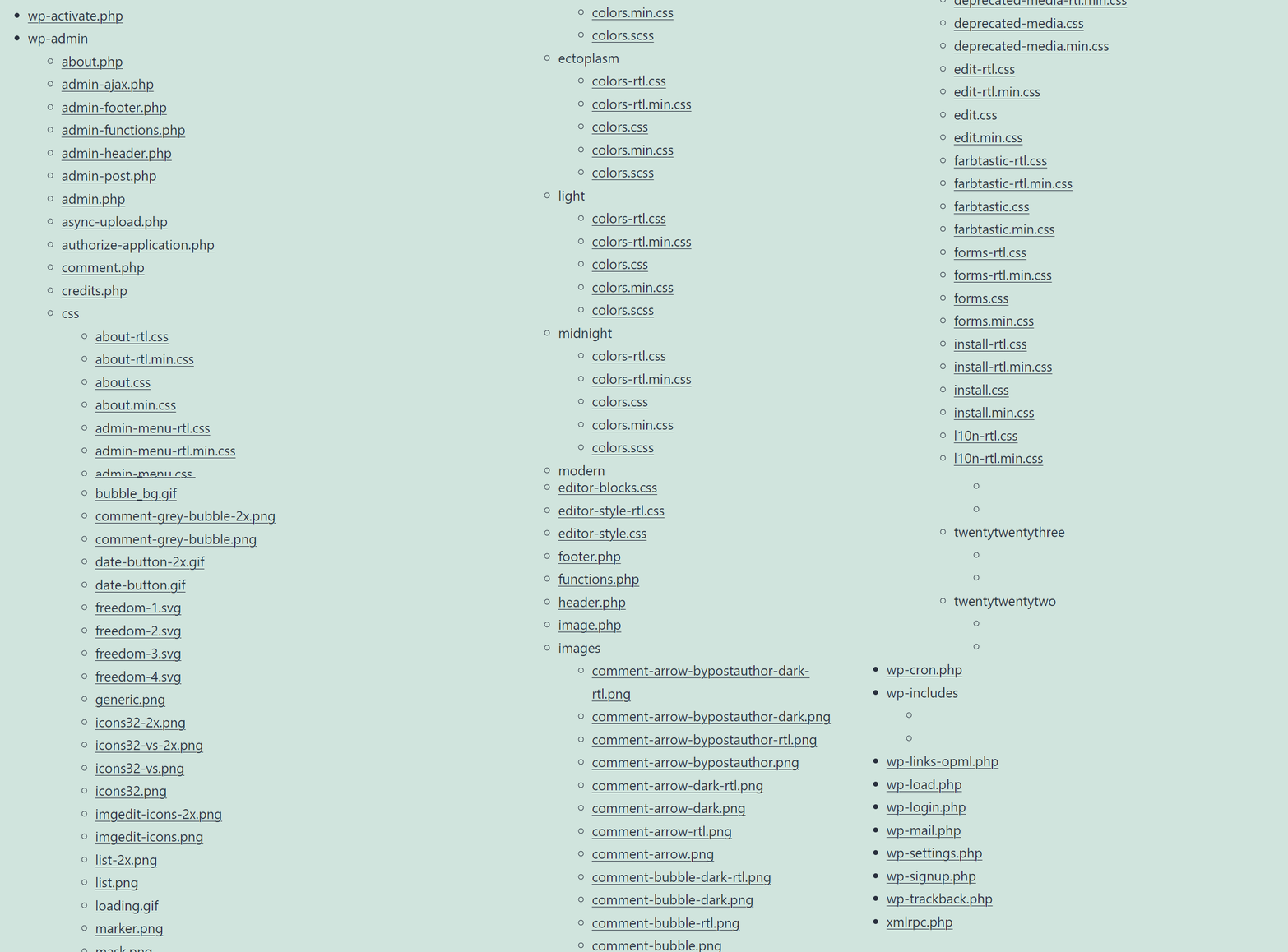
To make it more user-friendly you can make subdirectories closed by default and only show their files when clicked on.